Capturing the Patient Signature
An orange Patient Signature button indicates that the signature has not been captured. Once captured, the Patient Signature button turns blue. If the Complete button is selected and the patient signature wasn’t captured previously, you will be prompted to obtain the signature. The Patient Signature button is disabled on any follow-up Medication Reviews as consent is not required.
To capture the patient's signature:
- Select Patient Signature.

The Patient Signature window appears. - Obtain the patient's signature.
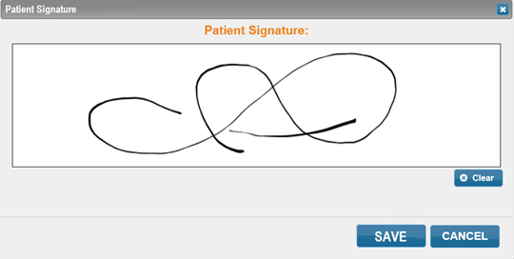
Note: Select Clear to clear anything entered in the Patient Signature field. Select Cancel to close the Patient Signature window and not save anything. If the patient signature was captured in error, it can be deleted by selecting Clear and then Save.
- Select Save. The Patient Signature window closes and the Patient Signature button turns blue.